/
Permissions
Permissions
- Lenny Emmerton
- Keith Ferguson
- Shaun Doyle
Owned by Lenny Emmerton
Step by step guide
Summary
By default, all Jira users can view roster data, manage their own notifications and interact with issues (using the Elevator UI panel within a Jira issue). Rosters can only be created and administered by users belonging to a group that has the Global Permission 'Create Shared Objects' (Please see Checking Global Permissions), or users who are members of the Jira Administrators or Jira System Administrators groups.
Setting up a user access group to restrict access to Elevator rosters or admin functions
Users can be restricted so roster details and admin functions are not accessble.
Add a dark feature to enable group restrictions
- Login as an administrator and go to [BASE-URL]/secure/SiteDarkFeatures!default.jspa
- Enter com.sapling.elevator.groupRestrictions.enabled in the enable dark feature field and select Add

- Once enabled users who are not JIRA Administrators or JIRA System Administrators will not be able to see Elevator rosters or admin functions. They will be able to see and interact with the Elevator panel within the issue UI. To hide the UI Panel see Hiding the Elevator issue panel
Add an Elevator User Group
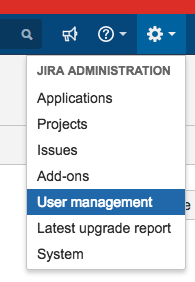
- Under Administration on the top right menu select User Management
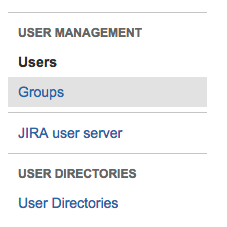
- Select Groups from the left-hand side menu bar
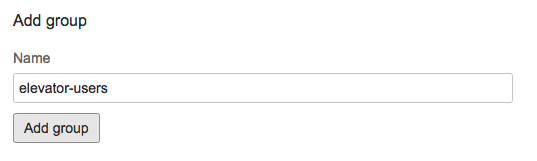
- Create a group and name it elevator-users
Add users to the Elevator User Group
- Under Actions select Edit Members

- Search add members to the selected group

Hiding the Elevator issue panel
Adding a dark feature to hide the Elevator Panel
- Login as an administrator and go to [BASE-URL]/secure/SiteDarkFeatures!default.jspa
- Enter com.sapling.elevator.issue.panel.hidden in the enable dark feature field and select Add
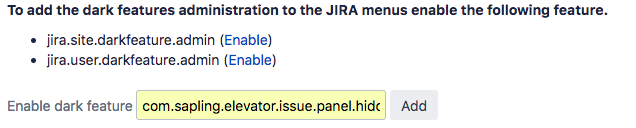
- Once enabled all users will not be able to see the Elevator Elevator panel within the issue UI.
Checking Global Permissions
- From the JIRA ADMINISTRATION option on the far right top menu select System

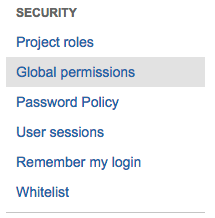
- Select Global Permissions under Security
- Confirm the required Roster Creator is a member of the group(s) associated to this permission